







How to Create a Print-out from a Video Tutorial
There are thousands of 'DIY' tutorials, on every subject, on YouTube, and in websites or blogs on the Internet. You can search for video tutorials like this: Google for 'wire wrapping tutorials'.
Continuing a Series on "Sharing" Our Knowledge
Jewelry makers worldwide generously share knowledge. This lets us learn in ways never before possible.
The internet offers endless tutorials, videos, and guides from passionate artists.
Thank creators who share these resources.
Each tutorial takes hours of work, from shots to clear explanations.
Show appreciation. Visit their sites, follow pages, or buy their art and materials.
Note: If you haven't already, refer to my earlier article, "How to Copy, Save, and Compact Tutorials," for detailed instructions on creating documents, copying and resizing graphics, and organizing your resources.
These same steps apply when converting a video tutorial into a printable format.
I recommend copying, pasting, and saving that article into a document, then printing it out for quick and easy reference at your workbench.e.
Jewelry makers worldwide generously share knowledge. This lets us learn in ways never before possible.
The internet offers endless tutorials, videos, and guides from passionate artists.
Thank creators who share these resources.
Each tutorial takes hours of work, from shots to clear explanations.
Show appreciation. Visit their sites, follow pages, or buy their art and materials.
Note: If you haven't already, refer to my earlier article, "How to Copy, Save, and Compact Tutorials," for detailed instructions on creating documents, copying and resizing graphics, and organizing your resources.
These same steps apply when converting a video tutorial into a printable format.
I recommend copying, pasting, and saving that article into a document, then printing it out for quick and easy reference at your workbench.e.
You've searched for "wire wrapping tutorials" on Google.
Finding Tutorials Online
A quick search returns millions of jewelry-making tutorials.
One recent search showed over 14 million results.
Click the "Videos" tab to narrow to videos only.
This filters out articles and images instantly.
Search "wire wrapping tutorials YouTube" directly in Google for YouTube-specific results.
Pinterest offers tutorials, tips, and inspiration. Create a free account to save ideas and get updates.
A quick search returns millions of jewelry-making tutorials.
One recent search showed over 14 million results.
Click the "Videos" tab to narrow to videos only.
This filters out articles and images instantly.
Search "wire wrapping tutorials YouTube" directly in Google for YouTube-specific results.
Pinterest offers tutorials, tips, and inspiration. Create a free account to save ideas and get updates.


For this tutorial, I've chosen to use Yvonne Williams "Fractal Wire Wrap Tutorial", which you can find on her YouTube channel.
(Click on her name, under the video, and it will take you to her channel.)
(Click on her name, under the video, and it will take you to her channel.)

How to Capture and Print Key Steps from a Video Tutorial
Use these video controls for printed references: the timeline bar and play/pause buttons.
The timeline shows progress with a red dot for your position. Drag it to jump to exact spots. Note timestamps for key sections.
Create a new document. Name it descriptively, like "Fractal Wire Wrap - Yvonne Williams."
Set layout: Narrow margins, two columns. Enable Ruler view.
Add title at top: FRACTAL WIRE WRAP, BY YVONNE WILLIAMS.
Save and start capturing video content.
Use these video controls for printed references: the timeline bar and play/pause buttons.
The timeline shows progress with a red dot for your position. Drag it to jump to exact spots. Note timestamps for key sections.
Create a new document. Name it descriptively, like "Fractal Wire Wrap - Yvonne Williams."
Set layout: Narrow margins, two columns. Enable Ruler view.
Add title at top: FRACTAL WIRE WRAP, BY YVONNE WILLIAMS.
Save and start capturing video content.

Reader-Optimized Version
Working With Two Windows & Capturing Clear Video Frames
Use two windows: one for video, one for your document.
Prepare workspace. Close other programs. Resize windows to see both. Overlap slightly or place side by side.
Show one document column at a time.
Practice video controls. Pause shows still frames. Tippy-tap Play (▶) to advance frame by frame for crisp images.
Drag timeline red dot for fine adjustments.
Use Snipping Tool (scissors icon) to clip clear stills. Pin it to taskbar next to Word.
Master this setup for easy step-by-step captures.
Working With Two Windows & Capturing Clear Video Frames
Use two windows: one for video, one for your document.
Prepare workspace. Close other programs. Resize windows to see both. Overlap slightly or place side by side.
Show one document column at a time.
Practice video controls. Pause shows still frames. Tippy-tap Play (▶) to advance frame by frame for crisp images.
Drag timeline red dot for fine adjustments.
Use Snipping Tool (scissors icon) to clip clear stills. Pin it to taskbar next to Word.
Master this setup for easy step-by-step captures.

Using the Snipping Tool to Capture Video Frames
Open the Snipping Tool. Click the scissors icon.
Choose "New." The screen dims. Select your video area with the "+" cursor.
Keep selections small and focused.
Copy with the double-page icon. Paste into your document with Ctrl + V.
Refine layout. See "How to Copy, Save, and Compact Tutorials" for resizing and captions.
Capture your first image. Find a clear shot of the finished project. Pause and snip.
Open the Snipping Tool. Click the scissors icon.
Choose "New." The screen dims. Select your video area with the "+" cursor.
Keep selections small and focused.
Copy with the double-page icon. Paste into your document with Ctrl + V.
Refine layout. See "How to Copy, Save, and Compact Tutorials" for resizing and captions.
Capture your first image. Find a clear shot of the finished project. Pause and snip.

This is when you need to start 'fine tuning'. You want to see all the objects - without the hand covering up one of them.
Back up the video a tiny bit, using the 'timeline'.
Then, begin 'tap,tap,tapping' very quickly until you come to a 'handless' frame:
Back up the video a tiny bit, using the 'timeline'.
Then, begin 'tap,tap,tapping' very quickly until you come to a 'handless' frame:

Now, use the snipping tool to copy only the portion of the video that you want - the little portion that shows a closeup of the jewelry variations.
Then click on the 'copy' icon, and position your cursor where you want the photo - then use the 'Ctl-V' or 'paste' command to place it in the document.
Then click on the 'copy' icon, and position your cursor where you want the photo - then use the 'Ctl-V' or 'paste' command to place it in the document.

Adding and Positioning Photos in Your Tutorial Document
Place your main photo below the title. Make it smaller than full column width. Size it to show details clearly.
Add a short caption. Save longer explanations for process steps.
Capture sharp frames by ttt-ing (tap, tap, tapping). Choose best angles from all sides. Replace with clearer images later.
Leave one line of space between photos. This aids repositioning and cleaner layout.
Save constantly after every edit.
Place your main photo below the title. Make it smaller than full column width. Size it to show details clearly.
Add a short caption. Save longer explanations for process steps.
Capture sharp frames by ttt-ing (tap, tap, tapping). Choose best angles from all sides. Replace with clearer images later.
Leave one line of space between photos. This aids repositioning and cleaner layout.
Save constantly after every edit.


Refining and Organizing Your Tutorial Layout
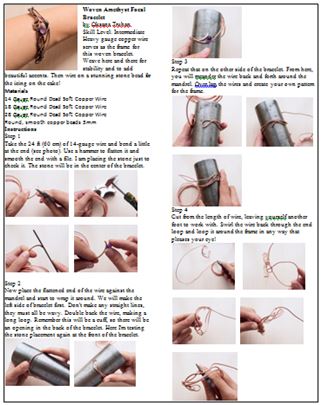
Combine photos to save space. Four small photos fit in one row, with a brief caption below.
Refer to "How to Copy, Save, and Compact Tutorials" for resizing tips.
Insert photos right after capturing, with short notes. Adjust sizes later for polish.
Save after every edit.
Group steps in rows. Add clear sentences beneath. Keep photos small but visible.
Capture key variations. Focus on favorites.
Rephrase instructions in your own words for easy following.
List materials up front near the title. Include tools, wire gauges, stone sizes, and findings.
Combine photos to save space. Four small photos fit in one row, with a brief caption below.
Refer to "How to Copy, Save, and Compact Tutorials" for resizing tips.
Insert photos right after capturing, with short notes. Adjust sizes later for polish.
Save after every edit.
Group steps in rows. Add clear sentences beneath. Keep photos small but visible.
Capture key variations. Focus on favorites.
Rephrase instructions in your own words for easy following.
List materials up front near the title. Include tools, wire gauges, stone sizes, and findings.


Adding Explanations and Fine-Tuning Your Photos
Write brief explanations for each photo. Summarize each video step clearly.
Continue this process through the entire video. Keep notes short but clear.
Capture tricky moments carefully. Take extra time for complex techniques or hand positions.
Be patient. Your future self will thank you.
Write brief explanations for each photo. Summarize each video step clearly.
Continue this process through the entire video. Keep notes short but clear.
Capture tricky moments carefully. Take extra time for complex techniques or hand positions.
Be patient. Your future self will thank you.
The illustration above shows the video tutorial in step-by-step format. Each image has a short explanation.
These notes help when replicating the project later.
Continue filling both columns of each page.
Save after every edit or addition.
Frequent saving protects your work from crashes.
These notes help when replicating the project later.
Continue filling both columns of each page.
Save after every edit or addition.
Frequent saving protects your work from crashes.


I always like to have a photo of the finished product - front and back, if possible.
Once you have completed these instructions, save one last time.
CONGRATULATIONS! You've just created your own personal tutorial!
Now, print it and save it in a 'Special Ideas' File!
And don't forget to write a brief 'Thank You!' to the artist who created the tutorial for you - at no charge!
-Linda Gale
Once you have completed these instructions, save one last time.
CONGRATULATIONS! You've just created your own personal tutorial!
Now, print it and save it in a 'Special Ideas' File!
And don't forget to write a brief 'Thank You!' to the artist who created the tutorial for you - at no charge!
-Linda Gale

Materials

24 Gauge Round Dead Soft .925 Sterling Silver Wire
H8-24D
- Lesson Quantity: 10.00 feet
- Purchase Quantity: 1.00 10FT
- Price: $32.71
- Gold Club Price: $24.53
Tools

WireJewelry - Ultimate Wire-Pliers Jewelry Pliers with Case, Set of 5
G15-20
- G15-20
- Lesson Quantity: 1.00 pieces
- Purchase Quantity: 1.00 each
- Price: $170.72
- Gold Club Price: $128.04
Supply Detail
loading...
Change Metal:
This Article requires:
Purchase quantity:
Price: $
Gold Club Price: $
Purchase quantity:
Price: $
Gold Club Price: $
- Category: General Education
- Technique(s): General Education
Linda Gale
Other Articles by Linda Gale
 creating a tutorial
 How to Copy, Save, and Compact Tutorials
 Three Ways to Keep Weaving Railroad Straight
 How to Determine the Correct Height of a Bezel
 Permanent Marker - the Tool You Love to Hate
 Create an 'Instant Memory Jogger' for Weaves, Techniques and Tips
 An Unusual Wire Weave
 Necklaces - How to Choose the Correct Length

The premier place for all your jewelry making needs. The best in wire, tools, cabochons, gemstone beads and more. As well as a superior resource for educational support to help build your jewelry making skills and techniques.
Connect With Us

® 2007 - 2026 Wirejewelry.com Powered by ClaimTheWeb Cart